Task guide / PC Early Access · November 2026
Why an open resort has no lift or trail users
Start at the unused lift and read its status. Then trace the complete route from the ticket office to the queue, up the lift and down a usable trail. The usual checks are reachable hubs, assigned staff, opening hours, snow and terrain the guest can ski. A road that looks connected is not proof that the game has joined the base areas.
Updated 2026-11-13 · PC Early Access · November 2026
Follow these steps
Find the actual unused object
Press M to open the Trail Map, then click the lift, trail or hub you want to inspect; the camera opens its panel. Read the status or warning before changing anything. Select an affected guest if needed and note their skill and complaint. An empty queue, a closed lift and a guest unable to find suitable terrain require different fixes.
Check the arrival area and bottom queue
Find the Ticket Office and make sure the lift bottom is in its connected base area. Overlapping base-area squares form one area; gaps do not. Only lift queue lines extend a hub area—ordinary fences and rope decorations do not. If the lift says Guests Can’t Board, inspect and redraw its reachable queue instead of adding a second ticket office.
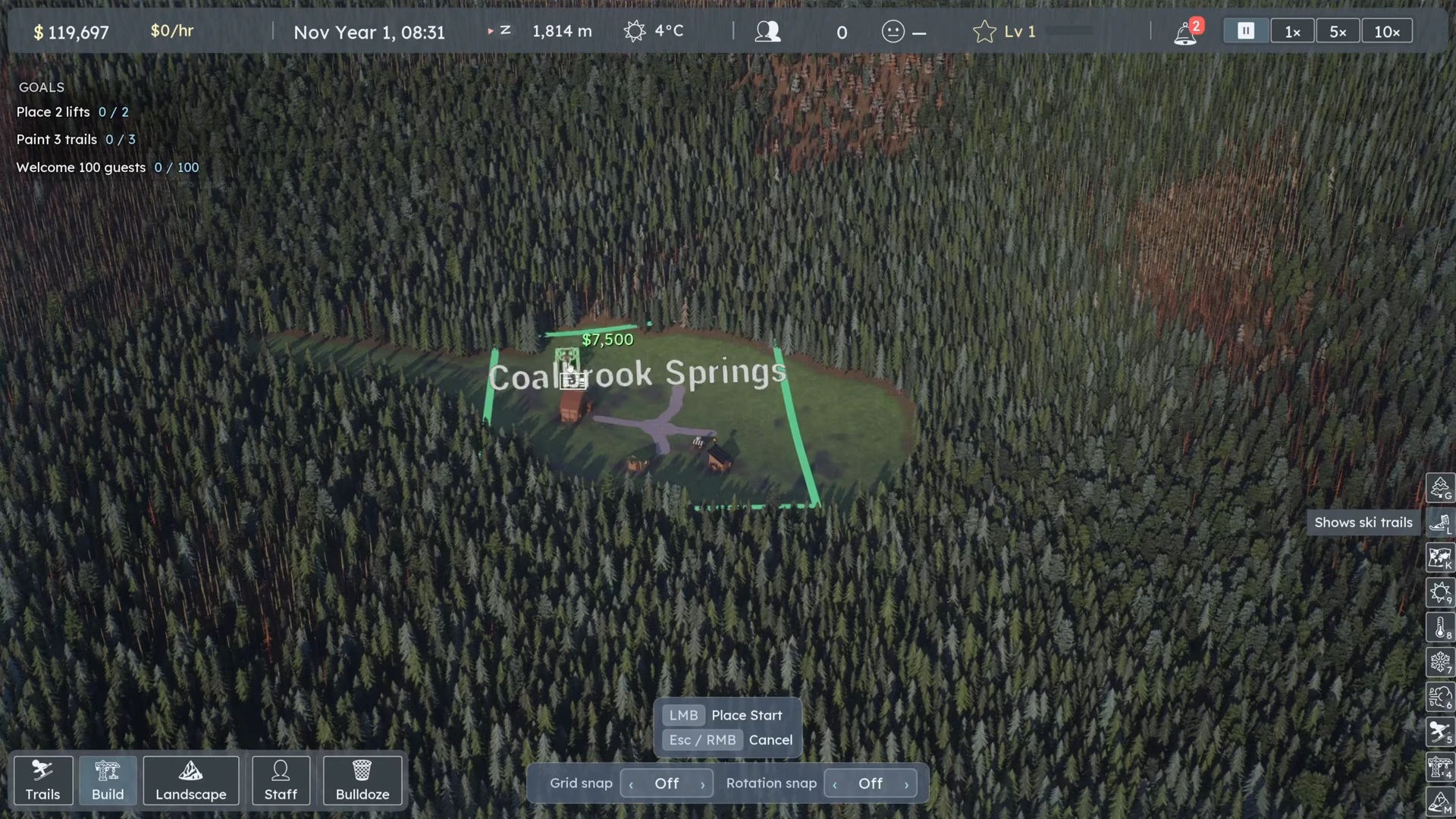 Open full-size image ↗
Check the bottom terminal against the base area, not just the nearby path. Nivarias Part 1, 04:55. Check the top-to-bottom descent
Select the trail and open Edit. Read any unusable-trail explanation. A Regular trail needs its start in the upper hub and its end in the lower hub; the confirm check is a useful placement signal. Trace an actual downhill route back to a base the guest can use. A lift without skiable snow from its top does not attract skiing customers just because another part of the mountain is white.
Confirm staff, hours and operating conditions
Select the lift. Check that a lifty is assigned, the current game time is within its hours, and it is not stopped for a breakdown, wind or cold. Read the reason shown by the game; a top station may have different weather from the base. Fix the listed event with the appropriate staff or wait for conditions to change. A connector or downloading lift can have a different purpose from a lift serving a normal run.
Match the terrain to the guest and the named hub
If a guest reports missing terrain, check the skill they actually have and the base or hub named in the complaint. The CL7794 change narrows these complaints to the place where that guest is stuck without suitable terrain. Add or reconnect a suitable descent there; an expert run on an unreachable side of the mountain cannot serve a beginner at the base.
Test the corrected connection
Advance time during operating hours and follow one guest from arrival through boarding and the descent. Check guest count and lift riders after this route works. Only then investigate price demand if the resort remains quiet. Late-season demand can be low even with good snow: in the Part 2 April sample, lowering prices does not immediately restore the crowd.
What success looks like
At least one guest reaches the queue, rides the intended lift and can ski a suitable route out of its top hub. The relevant warning is cleared or its remaining cause is explicitly identified.
If it does not work
If Edit still flags the trail, correct the reason displayed there and recheck its endpoints. If the queue is unreachable, redraw it with a clear entrance. If the structure is valid but the lift is weather-held, wait for the condition named in its panel. Preserve the save and build number for unexplained failures; old posts about false terrain complaints do not prove the same bug remains in CL7794.
Sources and version notes
- Nivarias Part 1: base connection and first usable loop ↗
Sponsored public full-game footage; exact build not shown. Not our own playtest.
- Official CL7351 / Trail Map patch notes ↗
- Official CL6750 patch notes ↗
- Official CL6797 patch notes ↗
- Official CL7794 patch notes ↗
- Official CL7489 patch notes ↗