Task guide / PC Early Access · November 2026
How to hire, assign and promote resort staff
Hire for a specific job, then confirm the person is assigned to the intended lift or building. In Staff, unassigned employees appear at the top with Assign; the dropdown is grouped by hub and shows building capacity. Check status and efficiency before paying for more people, and use earned promotion choices to improve the role you need.
Updated 2026-11-13 · PC Early Access · November 2026
Follow these steps
Match the role to the problem
Use a lifty for lift operations, maintenance staff at a Maintenance Shop for repairs and snow clearing, groomers at a Snowcat Shed for grooming, and Ski Patrol for incidents and injured/lost guests. Build the relevant workplace before hiring a crew that has nowhere to go. Maintenance, grooming and patrol are different jobs; an extra lifty does not groom a run.
Hire and confirm the assignment
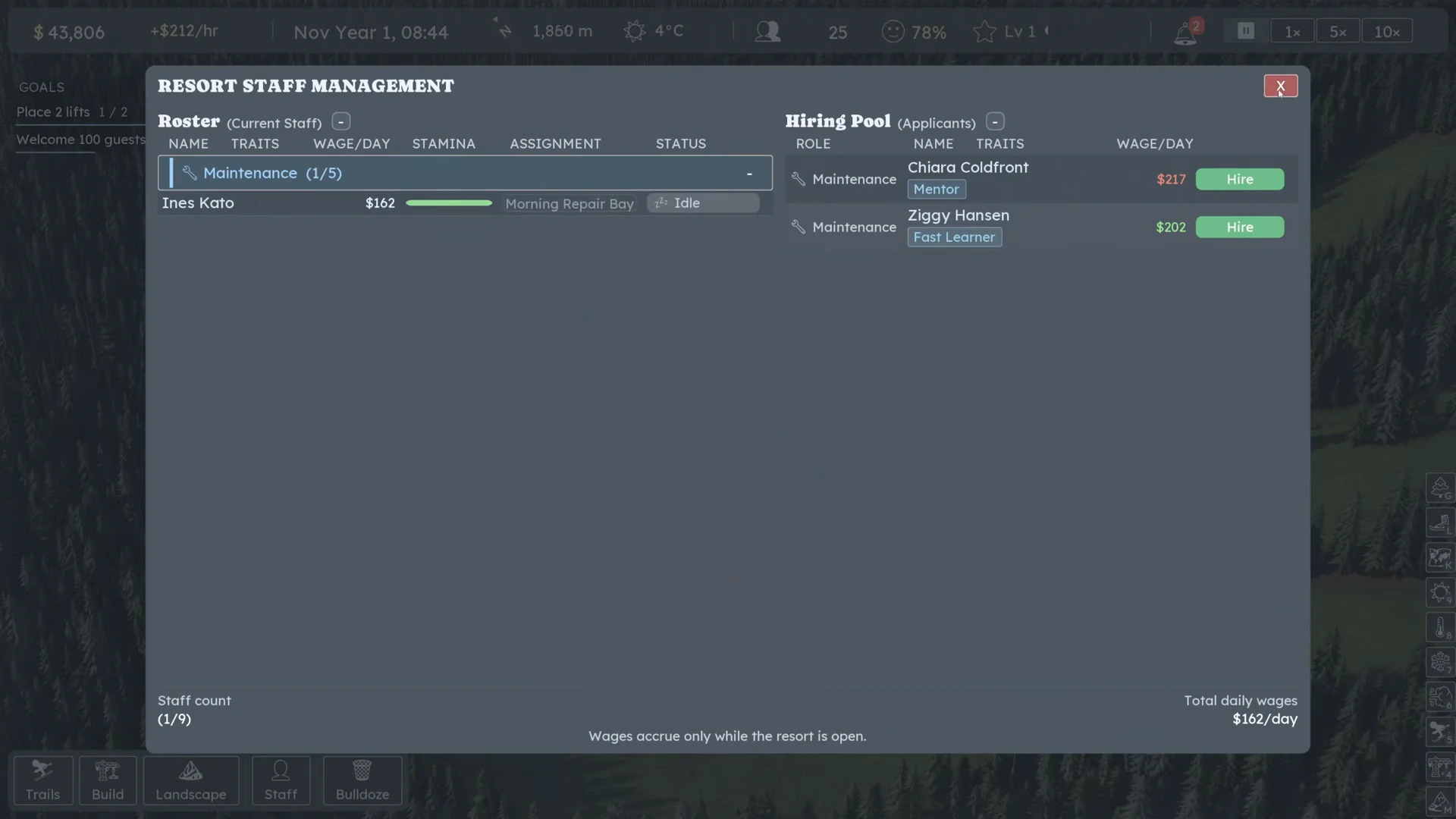
Open Staff, choose a candidate and compare the listed wage and traits. Hire, then use Assign for an unassigned person or Reassign for an existing employee. Choose the correct hub and a building or lift with space in the grouped dropdown. Reopen the workplace panel and verify that person is listed there; do not infer assignment from the resort’s total staff count.
 Open full-size image ↗
Read the employee’s Assignment column: Ines Kato belongs to Morning Repair Bay in this frame. Nivarias Part 1, 08:57; exact build not shown. Where to check the job Role Workplace / first observation Lifty The intended lift; inspect operating status and loading efficiency. Maintenance Maintenance Shop; inspect repairs and snow-clearing tasks. Groomer Snowcat Shed; inspect the night’s grooming work. Ski Patrol Patrol workplace; inspect the incident or injured guest being handled. Check the hub, task and route
When someone seems idle, select them and read their status before moving buildings. Confirm their assigned hub and whether the work is nearby or requires travel. Staff can walk, ride and ski to jobs; current official notes say they walk directly to nearby jobs within a hub and take a lift when quicker. A trip to a distant job can consume time without meaning the employee is unassigned.
Distinguish breaks and fatigue from missing staff
Read the selected employee’s status and the lift’s efficiency instead of treating every pause as a staffing failure. CL7738 makes staff take breaks at their home workplace, while lifties break at their post. The Tireless promotion is a stamina choice in the public example. There is no source-backed universal staff ratio or fatigue timer here: watch your actual status and efficiency before adding wages.
Promote an experienced employee for their actual role
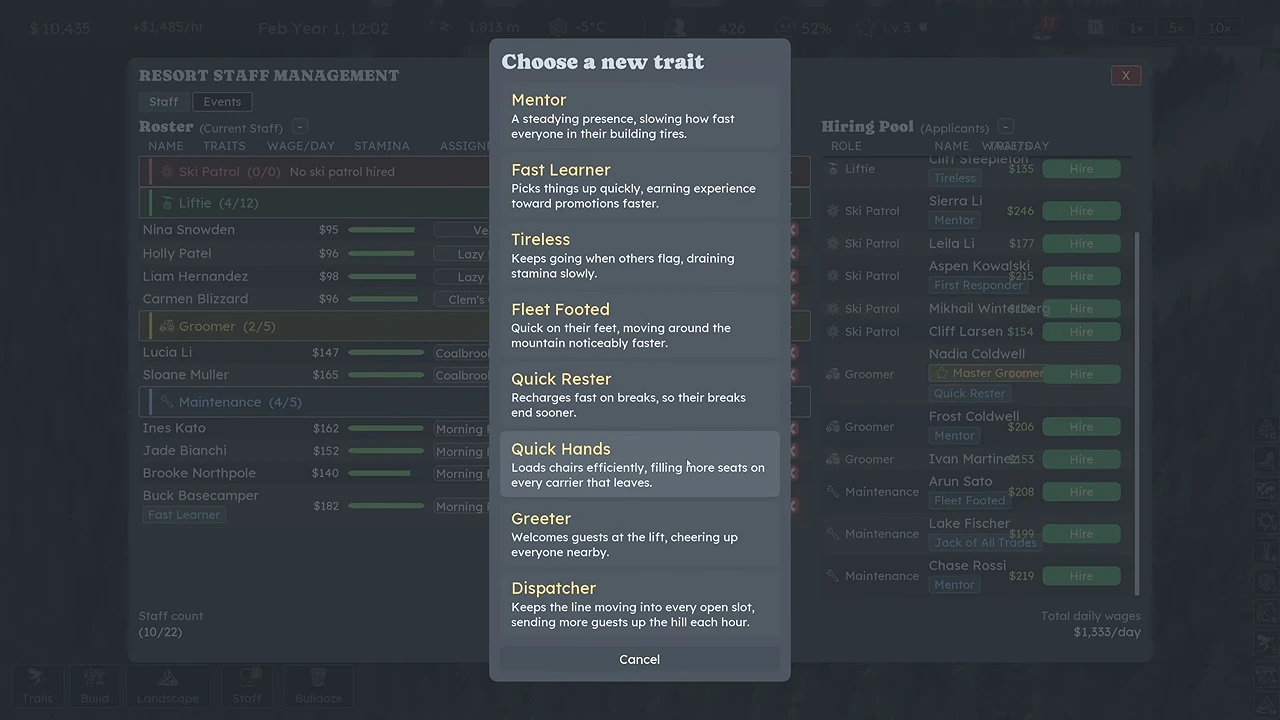
When Staff shows a promotion/earned XP choice, select that employee and read the offered traits. In the lift example, Quick Hand improves loading, Dispatcher improves dispatch, and Tireless addresses stamina. Choose the trait matching your current problem and confirm the promotion. Check the resulting trait on the employee and loading efficiency on the lift rather than assuming every promotion affects every job.
 Open full-size image ↗
Read the offered trait before confirming. Nivarias Part 2, 03:49; this is not a complete trait catalogue. Recheck the result and ongoing wage
Follow the worker to their task and compare the relevant workplace readout. For another lifty, inspect loading efficiency; for maintenance, see whether the repair/clearing work proceeds; for groomers, observe the night. Add staff only while the improvement is worth the visible daily wage, and return to Upcoming before expanding the crew.
What success looks like
The employee appears at the intended workplace, performs the right job during its working period, and any chosen promotion appears on their record. Your actual efficiency or work progress improves where expected.
If it does not work
If Assign has no suitable space, read the Staff prompt for the required workplace and check capacity in the hub dropdown. If a worker is on a break, wait and recheck. Snowmobile equipment does not prove that every worker will ride it on every route; current notes include routing and equipment fixes, so keep the build and save when behaviour remains unexplained.
Sources and version notes
- Nivarias Part 1: maintenance hiring and lifty assignment ↗
Sponsored public full-game footage; exact build not shown. Not our own playtest.
- Nivarias Part 2: earned promotions ↗
Sponsored public full-game footage; exact build not shown. Not our own playtest.
- Official CL6884 patch notes ↗
- Official CL7738 patch notes ↗
- Official CL6750 patch notes ↗